
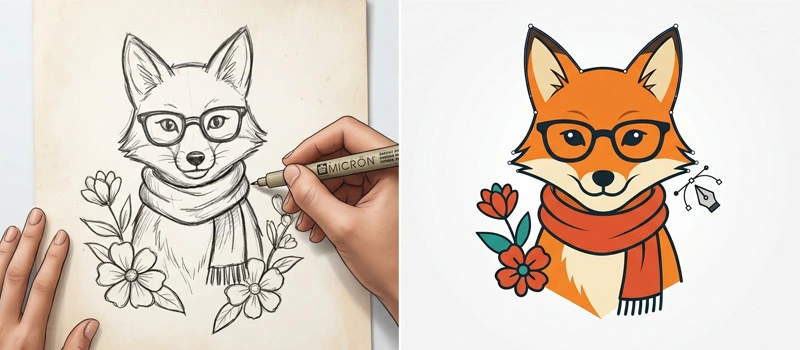
Have you created a hand-drawn sketch? Would you like to use it digitally? In that case, you should have the vector file of that drawing. After that, you can use it on any digital platform and print it. Otherwise, it looks blurry.
At that point, you have to know how to turn a drawing into a vector. Once you understand the Manual Vectorizing, you can turn anything into a vector. You just need to have Adobe Illustrator software.
Why turn a drawing into a Vector?
Turning a drawing into a vector means converting your sketch into a digital format. So, your drawing won’t be locked into limited quality. After vectorizing, it becomes fully resizable, sharp at any size, easy to edit, and ready for print.
You can use your drawing on a professional platform. You can use it for printing your design on t-shirts. Also, you can create a business logo. More than 80% of professional designers use vector graphics. So, you can sell designs online. Many platforms are available for that.
How To Turn A Drawing Into A Vector?
As a Top Rated Manual Vectorizing Company, we understand the importance of hand-drawn quality. That’s why we will share the manual process of turning a drawing into a vector.
Step 1: Get Your Drawing In Illustrator
First of all, open your drawing in Illustrator. Launch the Illustrator application and choose your image from the “File” option. We will show you the process with this drawing.
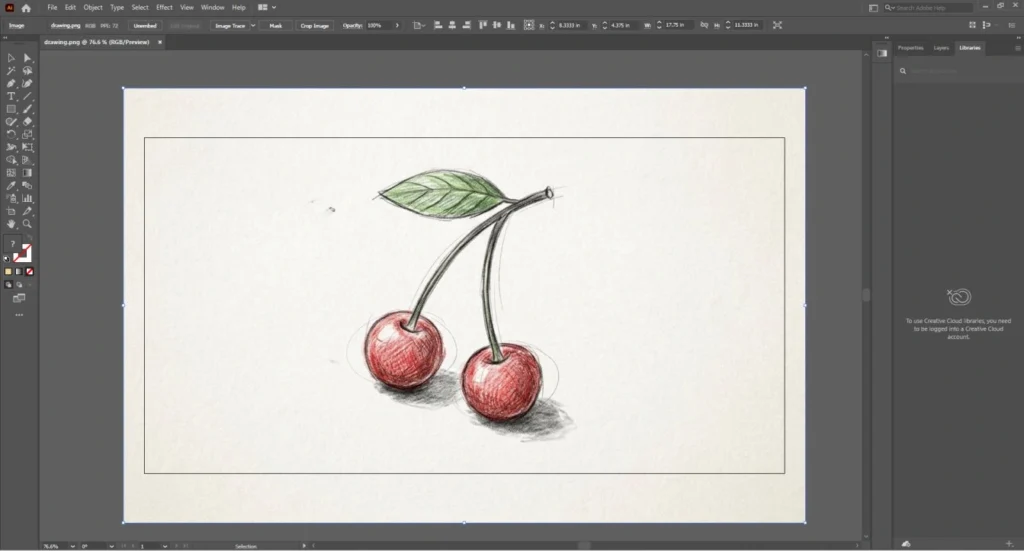
At this stage, you can see we have the hand-drawn design. We have to use a suitable tool to make those designs using shapes and lines.
Step 2: Draw The Lines
We are going to draw the lines using the pen tool. It will create the foundation of the design. Here’s the pen tool.
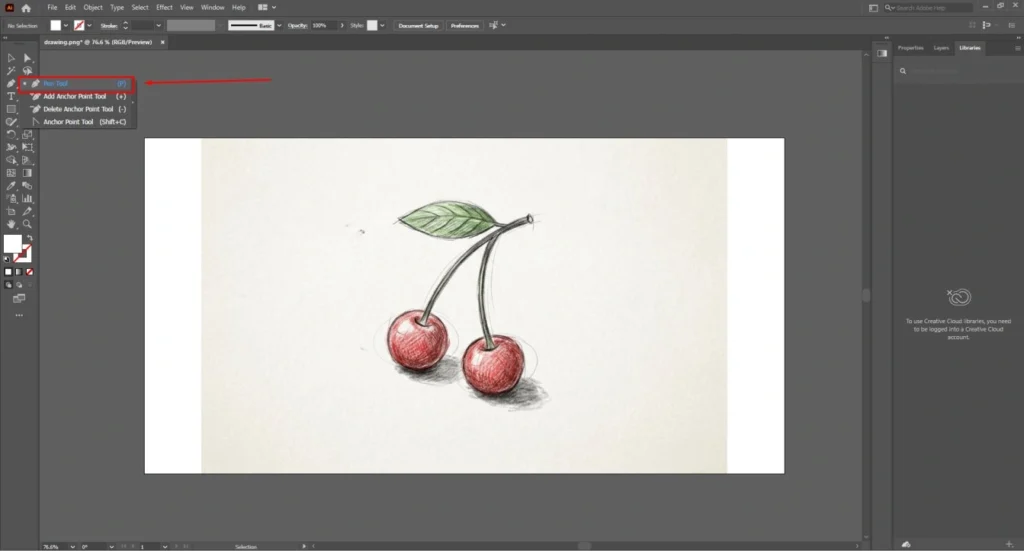
Select the pen tool and adjust the stroke from the above as per the drawing needs. This is the width of the line. For this section, I am going to set it to 9 pt.
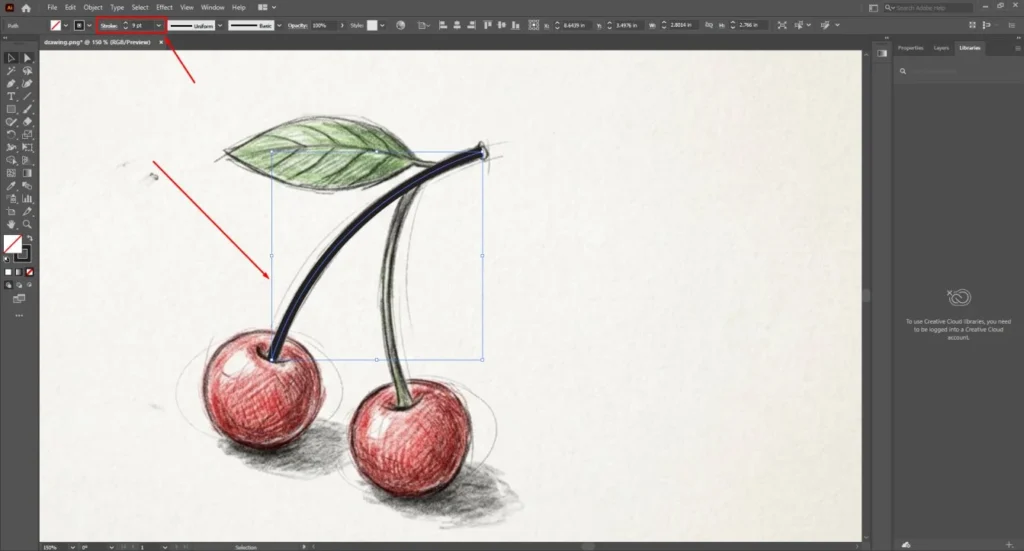
You have to repeat it for the other drawing elements.
Step 3: Use the Shape Tool for a defined shape
If there is a defined shape, like circle, rectangle, triangle, and any other shape, you can use the shape tool for that. For those round boundaries of the fruits, the ellipse tool will be suitable.
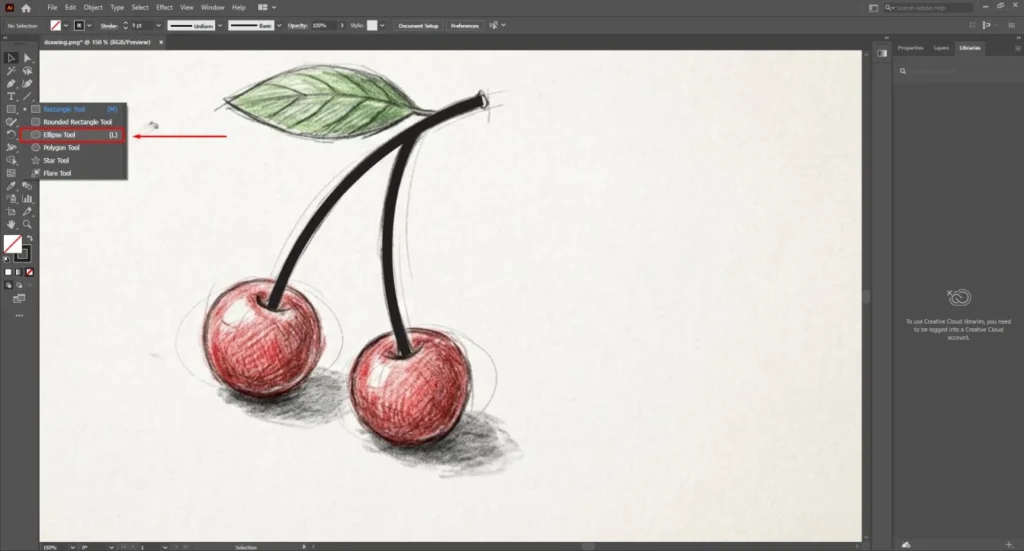
Hold the shift key to convert the ellipse tool into a circle. After creating one circle, you can just press the ALT key and click on the shape to duplicate it.
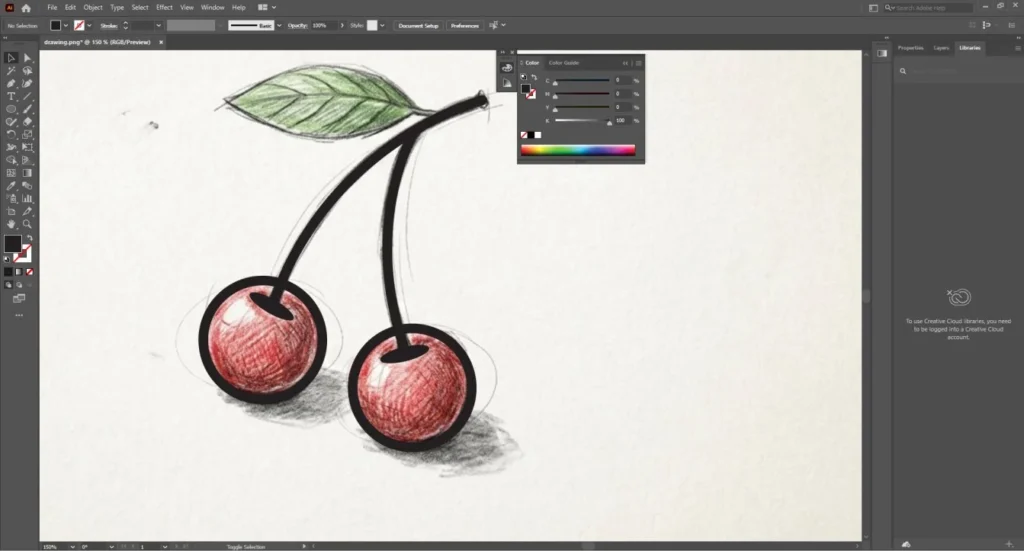
Step 4: Draw Other Shapes
There might be some other shapes in your design that are not predefined. So, we have to recreate those shapes manually. For example, we have to create the leaf shape in this design. We can easily do that using the Pen tool.
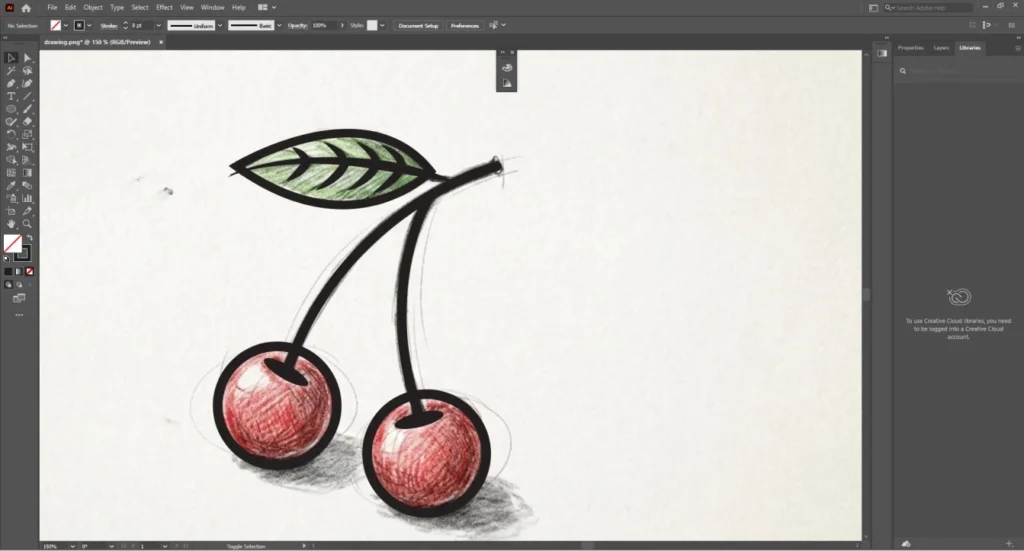
Now, we have got the structure of the drawing. It’s time to fill the design with color.
Step 5: Fill Color
I have taken a sample color to fill the design. You can use any color as the sample. Create another circle inside the round shape and set the fill color as the sample. You must set the stroke to 0 in this process.
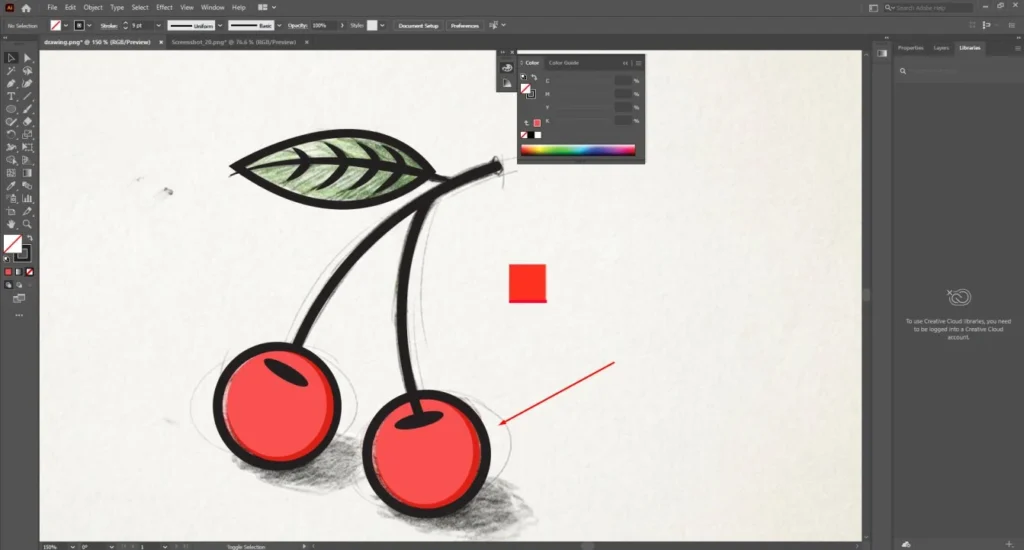
To bring color variation, I have used two circles with different color shades. Then, I have positioned those two together. Do it according to the design of your drawing.
Step 6: Expand Shapes
The path we have created using the pen tool has some limitations. You have to expand them into shapes to make it a proper vector. Select the path you want to expand and go to the object option from the top.
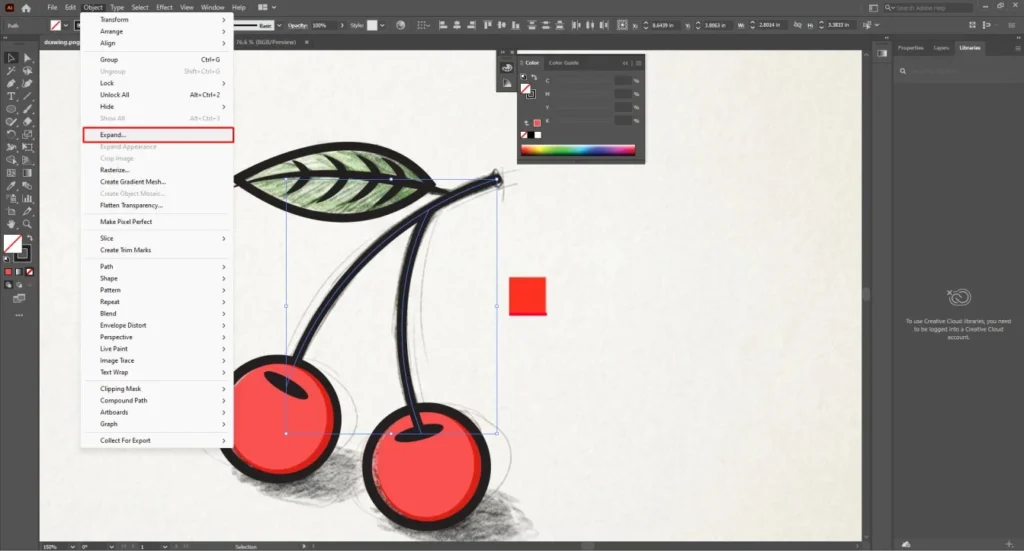
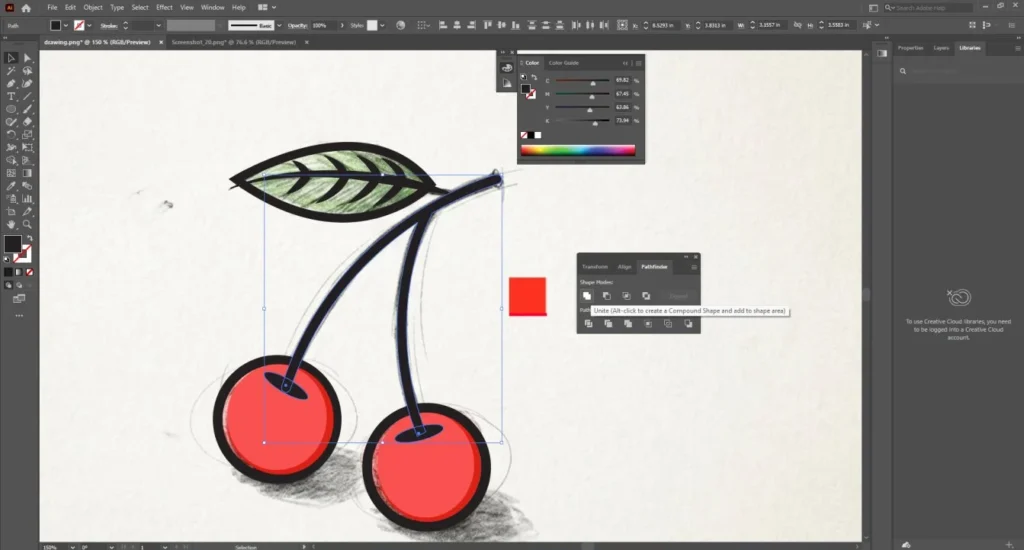
It will convert the path into shapes. Next to that, go to the Windows option from the top and choose the Path Finder option. Select multiple shapes you want to adjust and choose to unite. It will create a compound shape for the selected shapes.
Step 7: Separate The Drawing
At this stage, our vector tracing is almost done. Now, we can separate the original drawing.
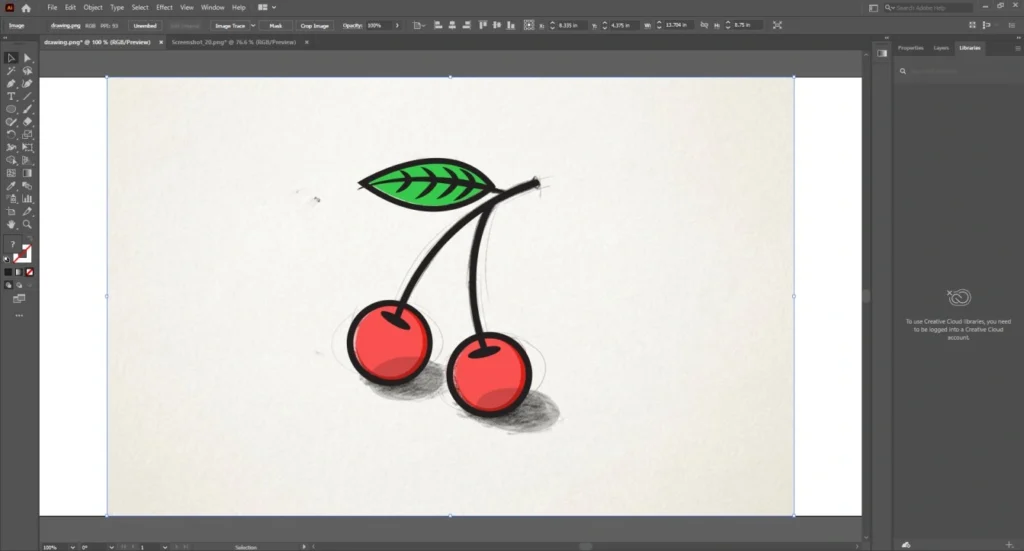
Place the drawing outside the artboard and place a rectangle shape behind as the background. You can set the fill color to be used as the background.
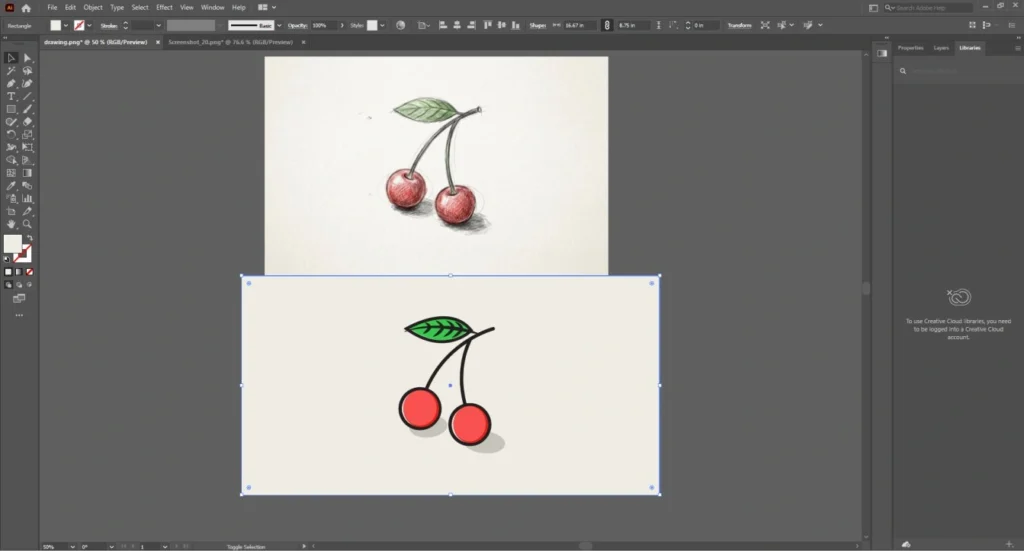
Step 8: Add Shadow
To make the design more attractive, you can add a shadow to the vector. Copy the shape that you want to use as shadows. Then, place it like a shadow. You must choose the option “send backward” from the arrange menu.
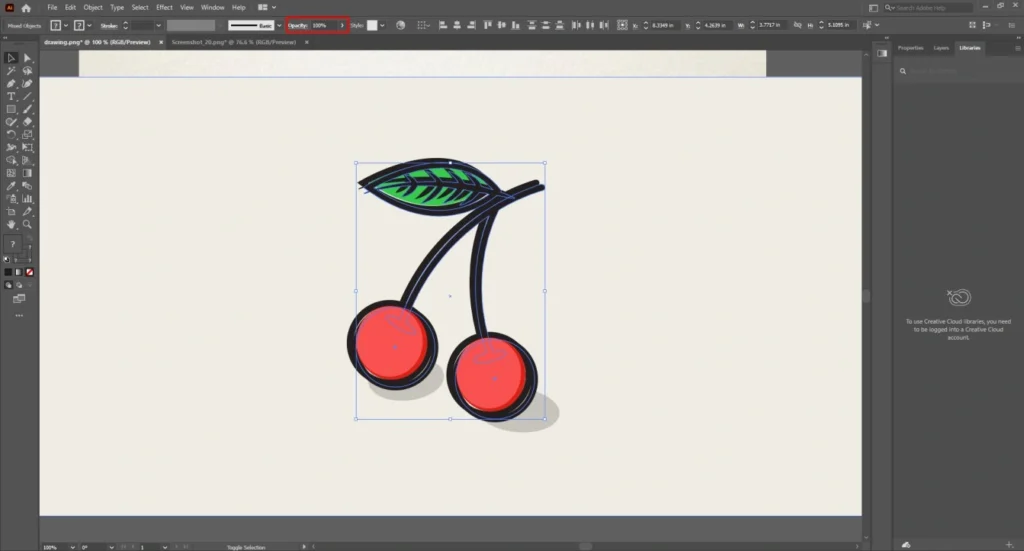
Finally, you just need to adjust the opacity of the design to give it a shadow look.
Step 9: Save The Vector File
Finally, our drawing is ready for saving. Go to the file option from the top and choose “Save As”. There will be many vector format options available to save the vector form of your design.
You can save it as AI or SVG. That’s the final look of the design.
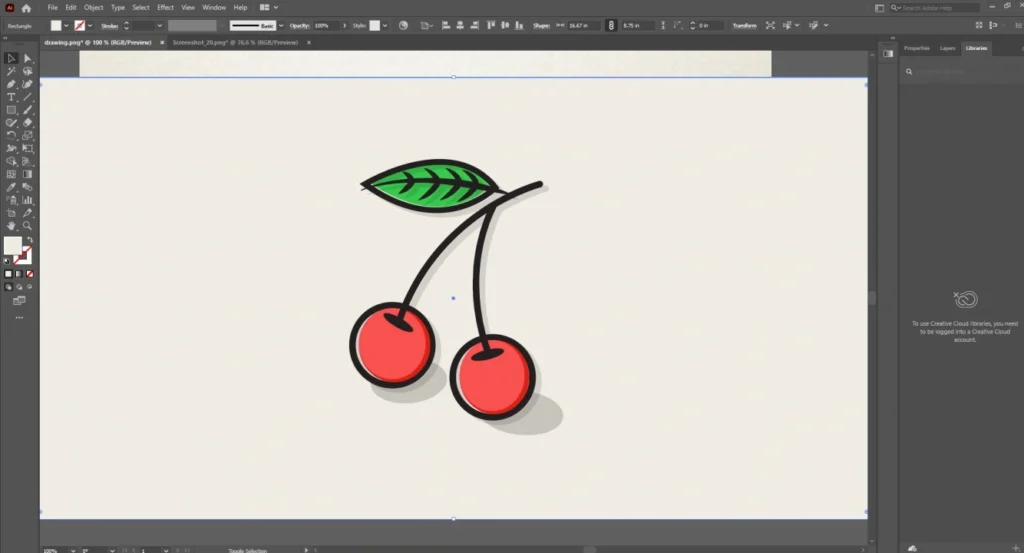
So, that was the process of how to turn a drawing into a vector. At the beginning, you might struggle a bit with the complex design. But don’t worry. After some practice, you will be able to draw better. Here are some tips to make your vector more accurate.
5 Golden Tips To Make Your Vector Drawing Professional
- You should always clean up the original drawing
- You must manually trace using precision tools
- Don’t forget to adjust and refine curves
- Always try to add some details to balance the design
- You must export in the right formats. Otherwise, it won’t be in vector form.
Sum Up
Vector format is the best option for hand drawing to make it presentable for any platform. You can use it both for online publishing and printing. No more dependency on automatic tracing.
In the manual process, you have full control to recreate the drawing perfectly. If you don’t have enough time for that, you can get our assistance. We can help you to get any drawing into a vector.
You won’t have to experience the loss of quality anymore. You can showcase your drawing in any big size without any blurriness. Let’s do that.
FAQ’s
Can you convert a hand drawing into a vector?
Using Adobe Illustrator, we can convert any drawing into a perfect vector. We can also work on rough sketches to create clean vector files with the right process.
What file formats will I get?
It will depend on your needs. You can ask for any common file formats such as AI, EPS, SVG, and vector-based PDF.
Is manual conversion better than auto-tracing?
Obviously, manual vector conversion gives more accurate results. However, the final output depends on the expertise of the vector designer.
How long does it take?
We have a team of 35+ vector designers to draw vector designs within a short time. Let us know about your expected timeframe. We can deliver within 24-72 hours.